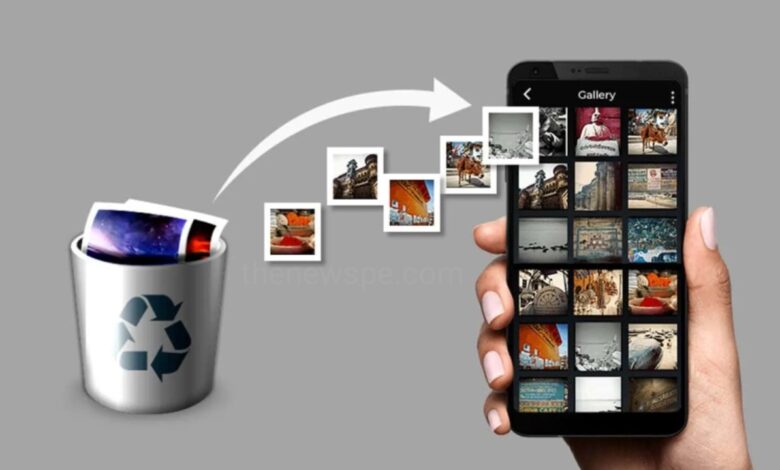
If you have accidentally deleted important photos or videos from your smartphone phone and now you want that photos back then don’t worry, you can easily get back your deleted photos and videos. Go through this article and know how you can recover your deleted photos and videos easily without using any third-party apps.
To recover deleted photos and videos, first check the “Trash,” “Recently Deleted,” or “Bin” folders in your phone’s Gallery/Photos app and cloud storage (like Google Photos or iCloud for iPhone users). Photos or videos which are deleted within 30-60 days you can bring them back by tapping on “Restore” option.
How To Recover Deleted Photos from Your Smartphone?
On Android Phones (Google Photos & Gallery)
Check Google Photos
- Open the Google Photos app.
- Tap on Library and then tap on Trash/Bin.
- Touch and hold the item that you want to recover, then tap on “Restore” (backed-up items stay 60 days, non-backed-up 30 days).
Check Gallery App
- Open your phone’s main Gallery app (not Google Photos).
- Find the menu (three dots), and look for Trash, Recently Deleted, or Recycle Bin.
- Hold on the photo or video you want to restore and then tap on “Restore.”
On iPhone (iOS)
Check Photos App
- Open the Photos app.
- Go to Albums and then tap on Recently Deleted.
- Select your photos/videos and then tap on “Restore.” Items remain for about 30 days.
On Computers (Windows/Mac)
Check Recycle Bin/Trash
- On your computer desktop, open the Recycle Bin (Windows) or Trash (Mac) and restore files if they are present.
Check Cloud
- Look in your OneDrive, Google Drive, or other cloud sync folders.
Photos or videos which are deleted within 30-60 days you can bring them back by tapping on “Restore” option. But after that time period you will not found that item and for that you have to use a third party data recovery app like DiskDigger for deeper scans on Android or check your computer’s Recycle Bin/OneDrive/cloud backups for PC users.
Use Data Recovery Apps for Android: For deeper recovery, try apps like DiskDigger to scan for files not in the trash folders.
Use Recovery Software for Computer: For permanent deletions, use dedicated data recovery software for Windows or Mac
Tips to Prevent Future Loss
- Enable Backup: Turn on backup in Google Photos or iCloud to save your media to the cloud automatically.
- Regularly Check Trash: Clear your phone’s trash folders periodically to free up space, but be aware this removes items permanently.
Humbly Request To All Visitors!
If you found above both downloading link expired or broken then please must inform admin.